What you need
Windows 11 x64, macOS on Apple Silicon or Ubuntu 24.04 amd64; an accessible SSH server, account and password or private SSH key.
Procedure
- Unlock the local vault. Under Servers, add the host, SSH port, username and authentication method. Select the private key, not the .pub file.
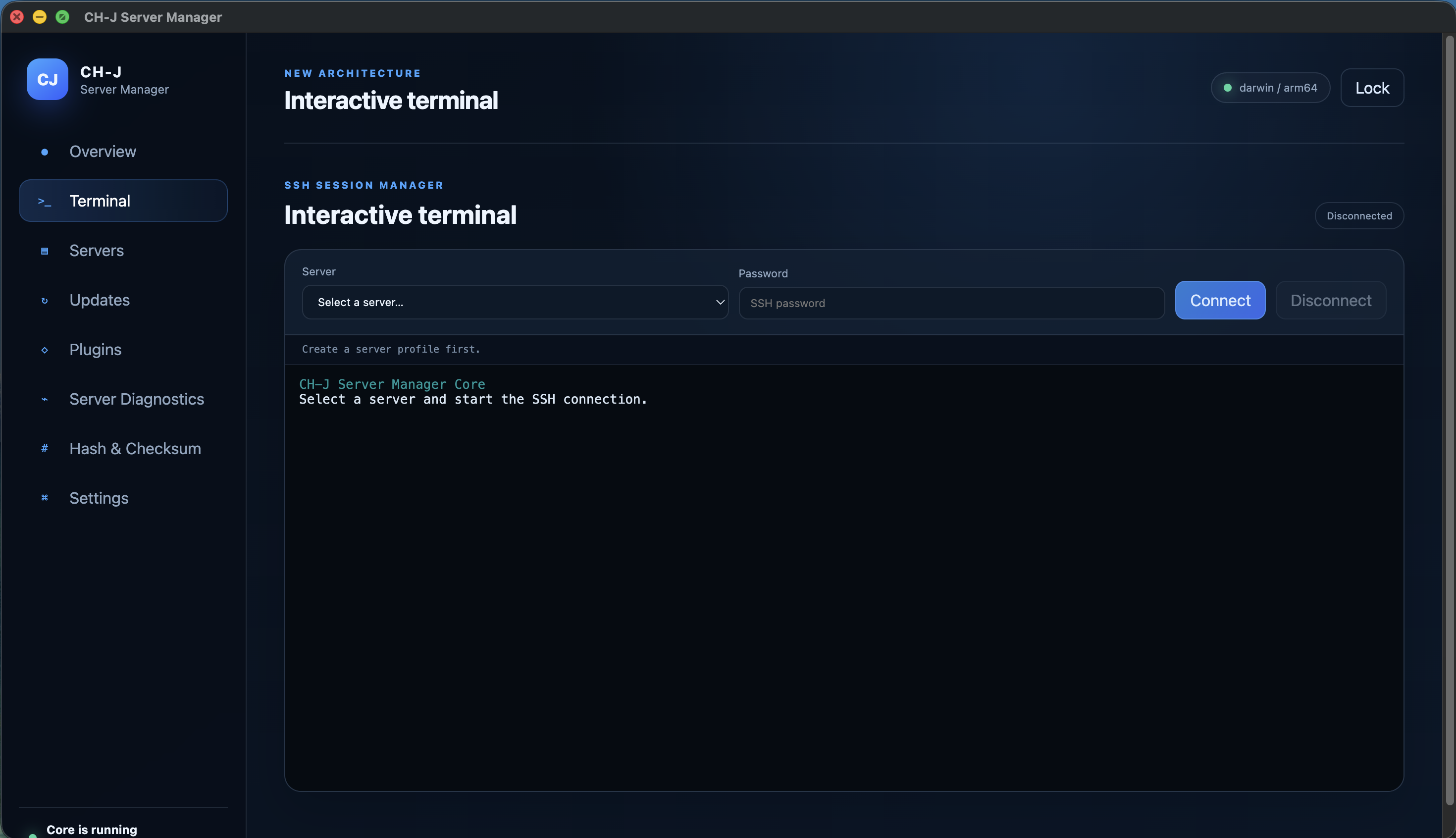
- Choose the profile in Terminal and connect. On first connection, compare the host key SHA-256 fingerprint with the administrator through an independent trusted channel.
- After verifying the key, use the terminal with the permissions of your SSH account. Check the destination host and user before commands that change data.
- Disconnect when finished or lock the vault. Locking ends SSH sessions; it is not intended to keep long terminal tasks running.
Limitations and checking results
Verify the reason for a changed host key before accepting it. A dropped connection does not undo commands already executed.
This Alpha is still evolving. On macOS, LAN access may need permission under Privacy & Security → Local Network.
An Alpha development version is available. Before using it on important systems, review the limitations of individual features and prepare backups.